
Free Trial
Web API version
Licensing
Request A Quote
HAVE QUESTIONS OR NEED HELP? SUBMIT THE SUPPORT REQUEST FORM or write email to SUPPORT@BYTESCOUT.COM
Google Forms to PDF | Zapier | HTML To PDF API
Tutorial.txt:
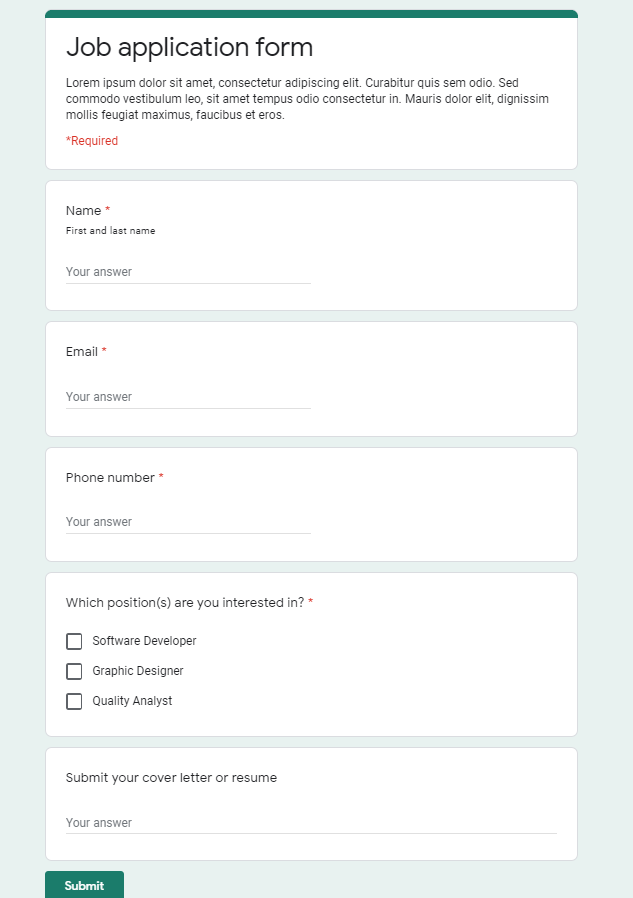
1. In this sample we're using "Job application" google form as shown below.
[Screenshot_1.png]

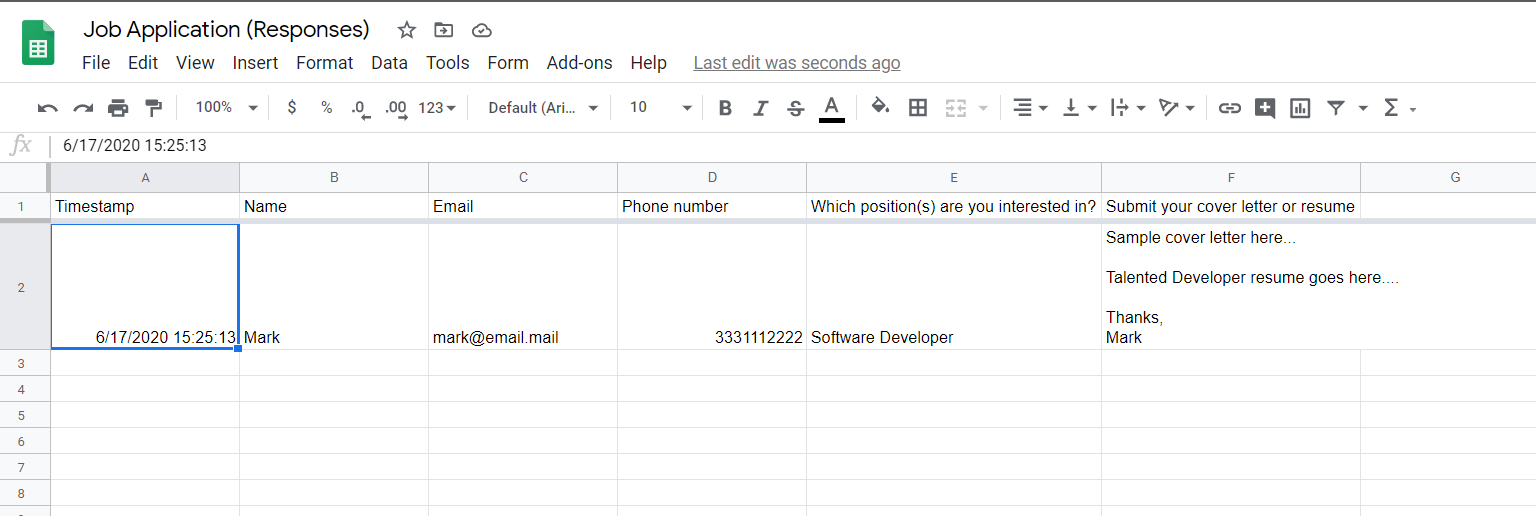
2. Google form can be associated with spreadsheet in backend to hold all data. We'll use this spreadsheet data to generate output PDF. Whenever new row is added to spreadsheet, it'll be used as trigger to process further actions.
[Screenshot_2.png]

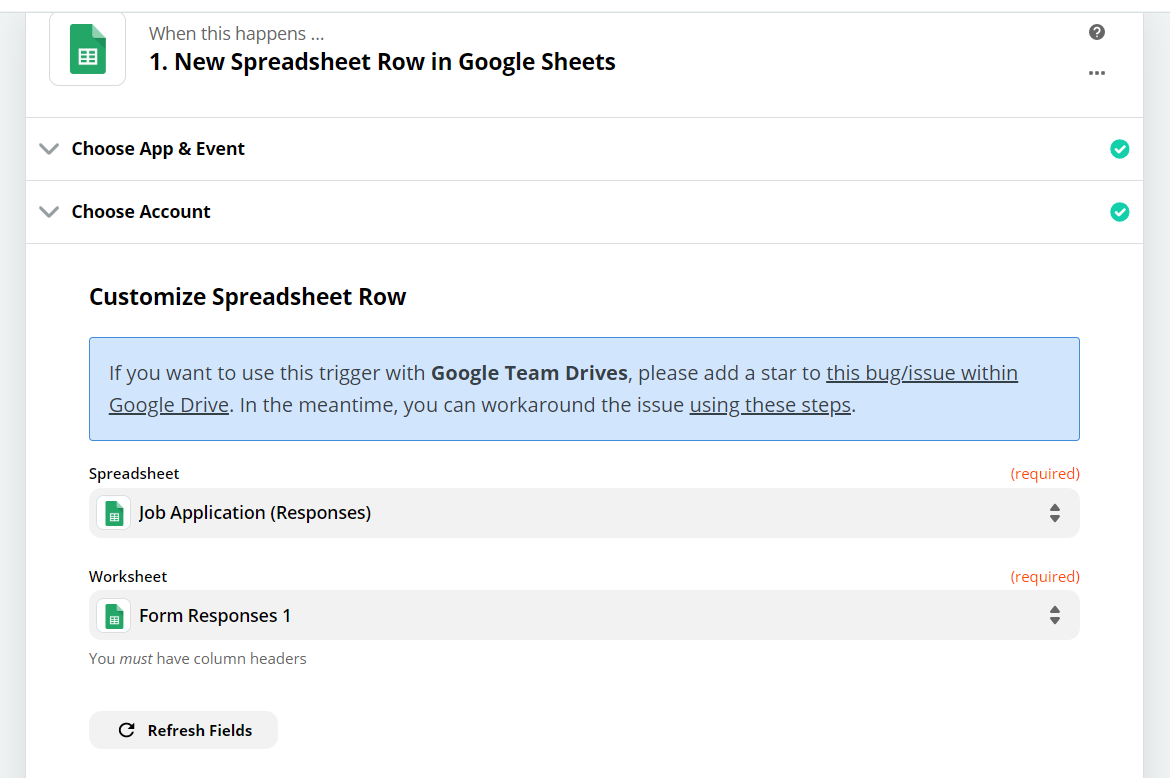
3. In first step to create zap, we've provided “Google Sheets” as input app and "New Spreadsheet Row" as trigger. Further also provided specific "Spreadsheet" and "Worksheet" to lookup on.
[Screenshot_3.png]"

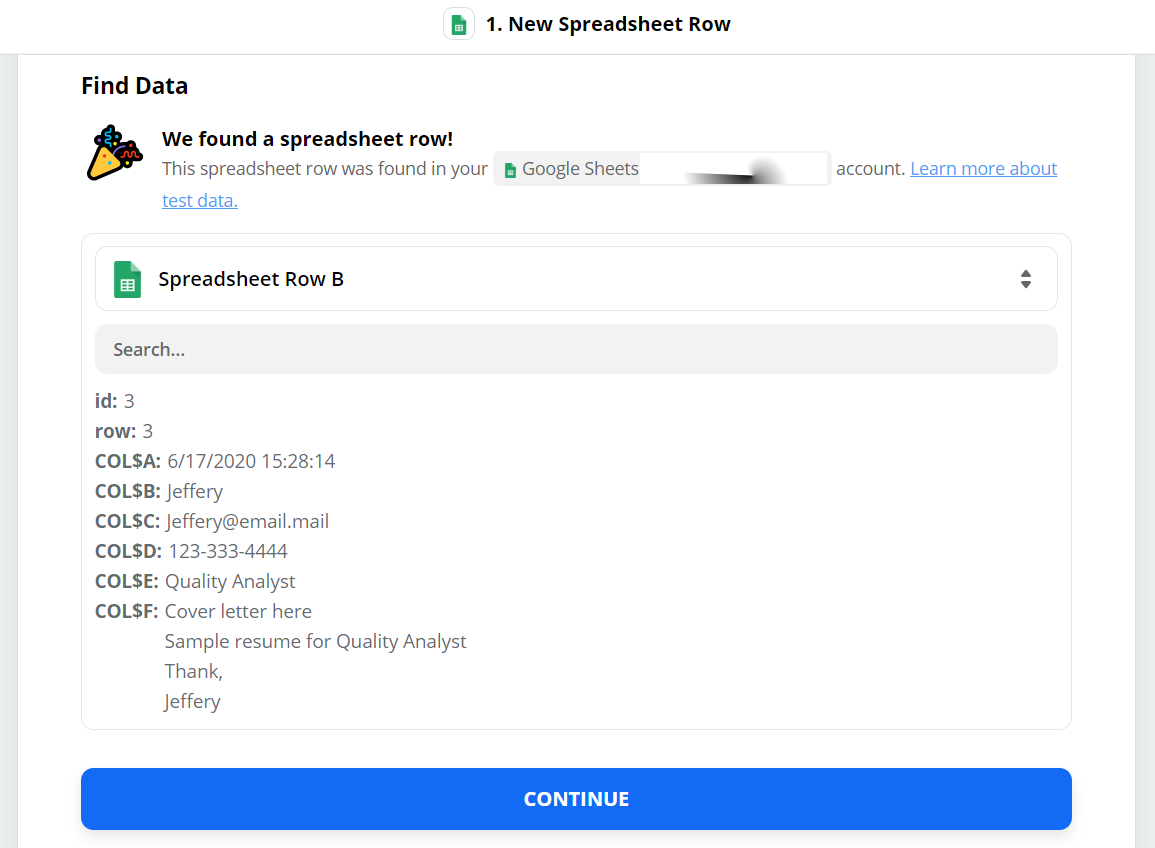
4. After all configuration is ready, it's time to test trigger and analyze output data. Prior to testing, do add new google form input. This will add new row in spreadsheet which we’ve configured as trigger for this zap. Data will look like below.
[Screenshot_4.png]

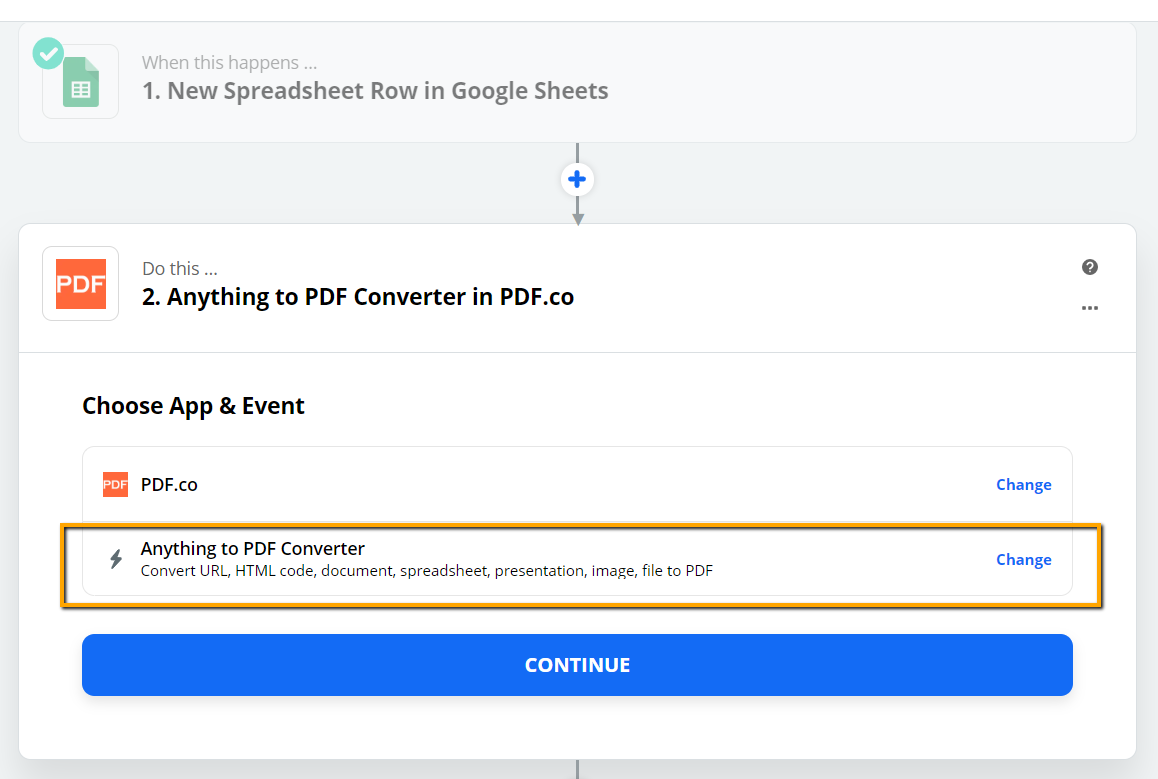
5. Now that input application and trigger configuration is completed, let's move to next step where we proceed with PDF creation. Let's select "PDF.co" as an App and "Anything to PDF Converter" as an Event.
[Screenshot_5.png]

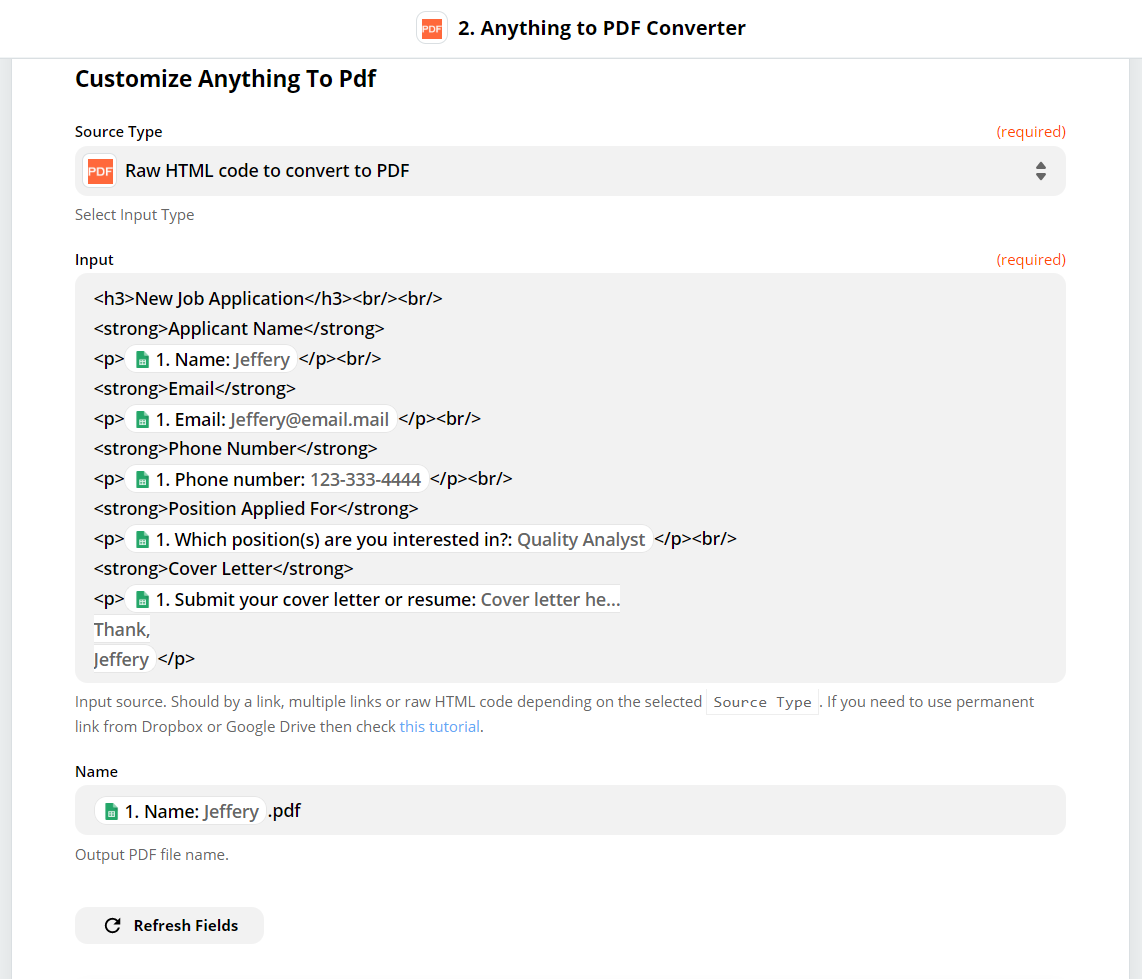
6. "Source Type" parameter value should be "Raw HTML code to convert to PDF". Also provide "Input" field value with html. Input html will contain data fields from spreadsheet such as “Name”, “Email”, “Phone Number”, etc. Finally provide some meaningful output PDF name in "Name" field.
[Screenshot_6.png]

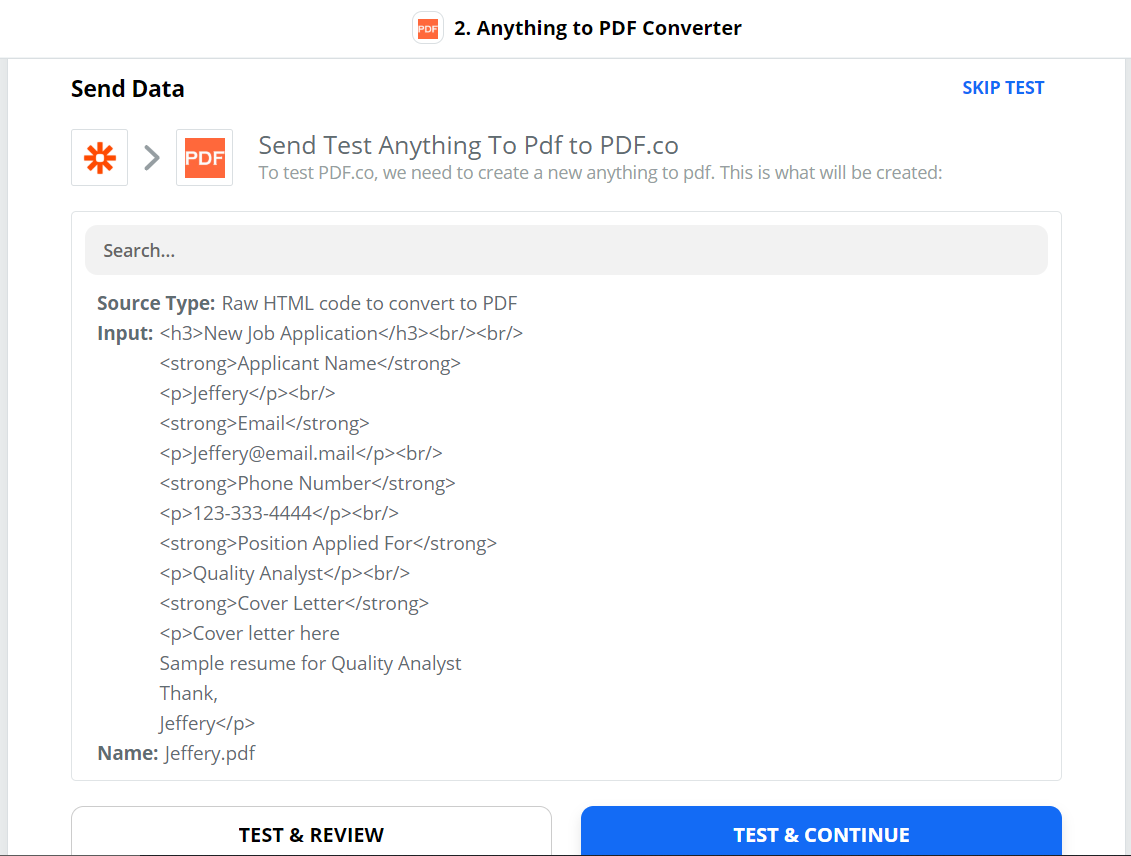
7. Prior to sending data to PDF.co for PDF output, Let's review generated input HTML along with target PDF file name.
[Screenshot_7.png]

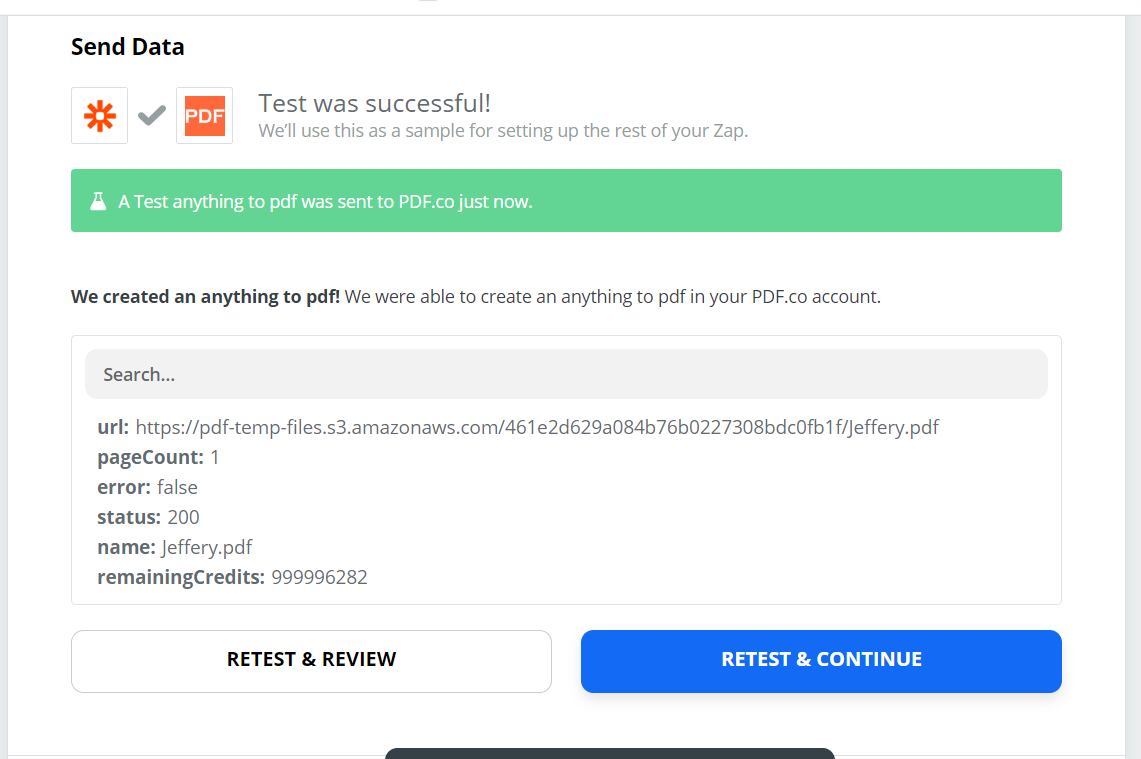
8. Here's response from PDF.co. It contains fields such as URL of output pdf, total page count of generated document, etc.
[Screenshot_8.png]

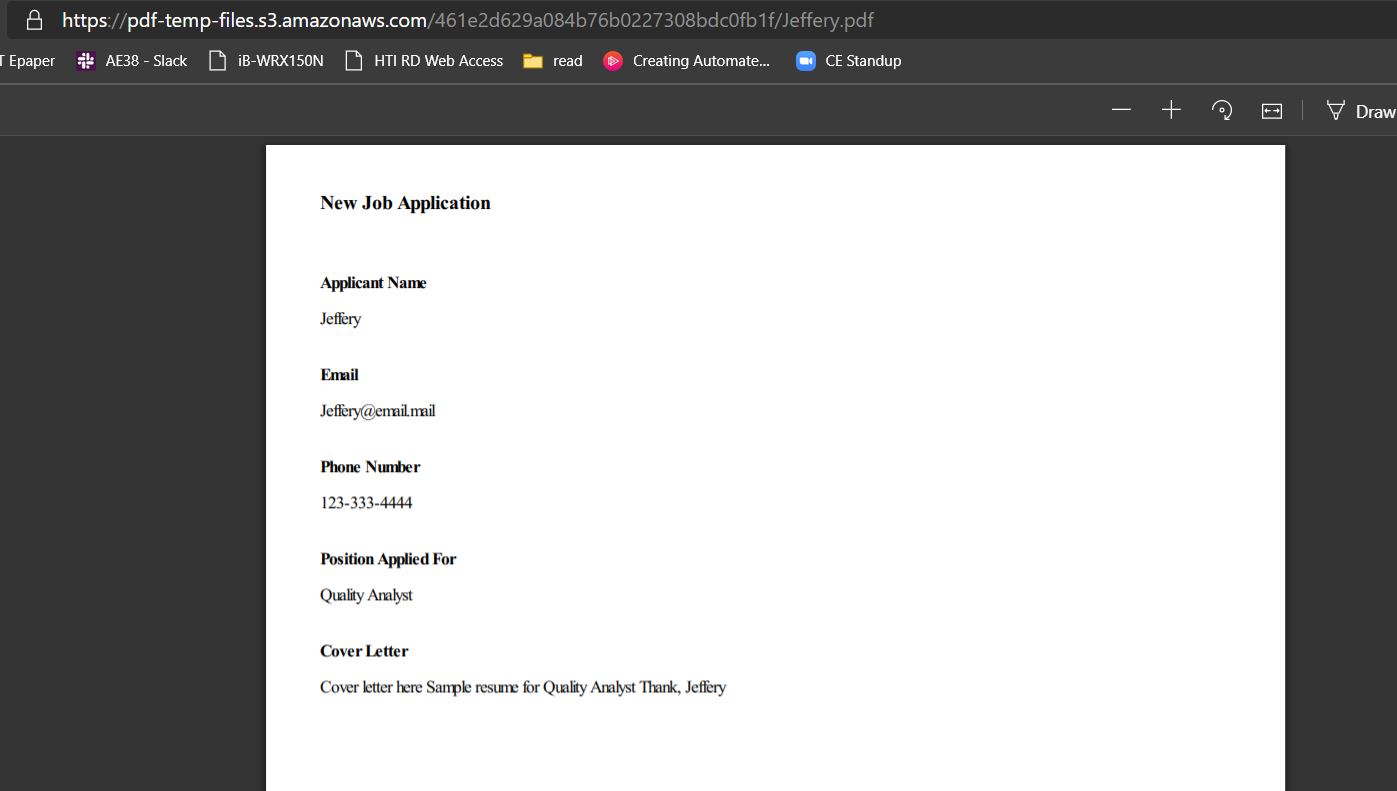
9. If we review generated PDF file, it'll look like following.
[Screenshot_9.png]